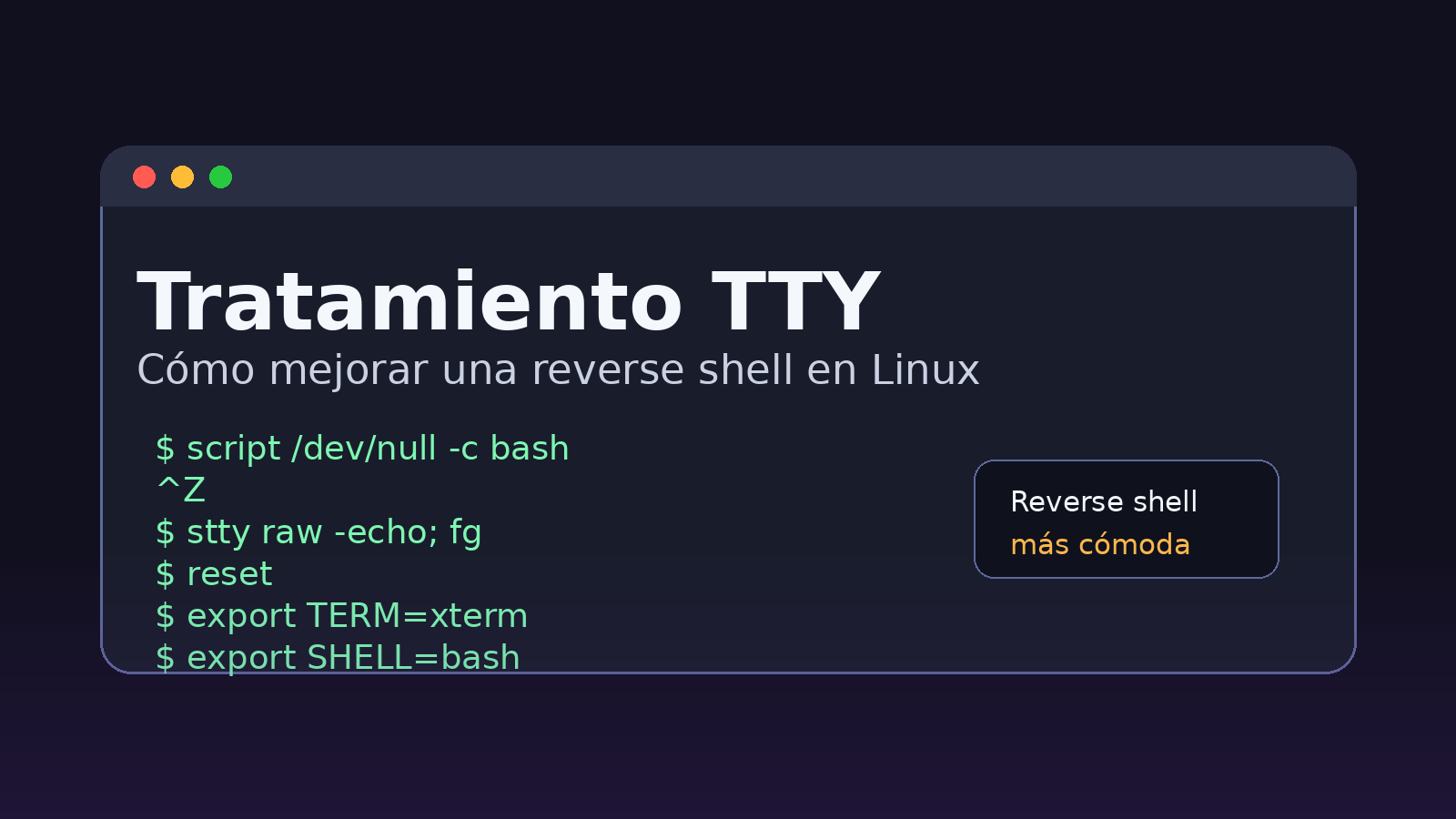
When we get a reverse shell in a cybersecurity lab, many times the terminal we receive is not comfortable to use. We can execute commands, but the shell is usually limited: Ctrl + C does not work well, we do not have autocomplete, some keys behave weirdly and certain interactive programs may fail.
This process of improving the terminal is often called TTY treatment. Simply put: it consists of converting a basic shell into a more stable terminal and similar to a real Linux session.
This article is designed for controlled environments, laboratories, CTFs and cybersecurity training.
What's wrong with a basic reverse shell?
A basic reverse shell allows us to execute commands on the target machine, but it doesn't normally behave like a full terminal.
For example, it may happen that:
- The autocomplete with
Tabdoes not work correctly. Ctrl + Ccloses the connection instead of canceling a command.- We can't use interactive programs well.
- The terminal does not correctly recognize the type of environment.
- The experience is uncomfortable to list the system.
The idea of the TTY treatment is to improve that shell to be able to work better during the post-exploitation phase.
Quick process outline
Step 1: Create an interactive shell
Once we have the reverse shell, we run:
script /dev/null -c bash
This command starts a new Bash session using script. In practice, it helps us get a more interactive shell inside the compromised machine.
script /dev/null -c bash
At this point, the terminal improves, but it is still not completely comfortable. That's why we make a few more tweaks from our attacking machine.
Step 2: Suspend the connection
After executing the above command, press:
Ctrl + Z
This temporarily suspends the connection and returns us to our local terminal.
We are not closing the shell. We are only leaving it in the background for a moment to be able to adjust how our terminal behaves.
Step 3: Adjust the local terminal
Now, on our attacking machine, we run:
stty raw -echo; fg
This command does two things:
| Part | What it does |
|---|---|
stty raw -echo | Adjusts the way our local terminal sends and displays characters |
fg | Retrieve the suspended reverse shell |
After this, the shell returns to the foreground.
When retrieving the terminal, you may see something strange or that does not seem to respond the same. It is normal in this step.
Step 4: Reset the terminal
When we go back to the shell, we can run:
reset
This command helps to clean the state of the terminal and get it back to behaving more normally.
reset
After that, we can already configure some environment variables.
Step 5: Configure TERM and SHELL
Finally, we executed:
export TERM=xterm
export SHELL=bash
These commands help the terminal know what type of environment it is using.
| Command | What it's for |
|---|---|
export TERM=xterm | Indicates the type of terminal to be used |
export SHELL=bash | Defines bash as reference shell |
With this, the shell is usually much more comfortable to work with.
Complete Commands
The complete flow would be as follows:
script /dev/null -c bash
Then press:
Ctrl + Z
Then, on our attacking machine:
stty raw -echo; fg
And finally, inside the shell:
reset
export TERM=xterm
export SHELL=bash
What do we get with this?
After TTY treatment, the shell is usually much more usable.
We will be able to work more comfortably to:
- List users, permissions and processes.
- Move through the file system.
- Run Linux commands with fewer problems.
- Use a more stable terminal during practice.
- Continue with the escalation of privileges in better conditions.
Visual Summary
Before:
Limited, uncomfortable and uninteractive shell

After:
Shell more stable, more comfortable and better prepared to work
TTY processing is not an exploitation in itself. It is a session enhancement technique. It serves to work better once we have already obtained a shell in an authorized environment.
Conclusion
The TTY treatment is one of those steps that may seem strange at first, but becomes very useful when you practice cybersecurity labs. It does not make the machine more vulnerable, but improves the way we interact with the obtained shell.
Bottom line: If you have a basic reverse shell and want to work more comfortably, this little process can make a big difference.
Always perform these tests only in your own laboratories, CTFs or environments where you have authorization.